
Touring DJs and club residents manage hundreds of new tracks every single week. When preparing music for festival stages or club nights, you cannot afford corrupt audio files, missing metadata, slow download speeds, or single-point-of-failure USB drives.
A professional DJ library workflow requires three essential pillars:
1. Uncompressed Studio Master Audio: 24-bit / 44.1 kHz FLAC or uncompressed WAV audio containers for maximum dynamic range on club sound systems.
2. Automated Metadata and Tagging: Embedded Camelot musical keys, precise BPM values, and 1400x1400 album art for rapid track selection in the booth.
3. Hardware Redundancy: Multiple verified USB drives formatted for Pioneer CDJ-3000 and CDJ-2000NXS2 players.
In this practical walkthrough, we guide you through setting up a complete touring DJ workstation using beatport-downloader.com, unlocking unlimited downloads with a Pro lifetime key, configuring client-side browser workers, and setting up automated dual USB sync.
1. Workstation Architecture: How the Pro Engine Operates
Beatport Downloader PRO provides two distinct execution modes designed for different preparation environments:
1. Zero-Install Web Workstation (Default): Runs 100% inside your browser using modern Web Streams and client-side ZIP packaging. Ideal for quick laptop track ingestion in hotel rooms, airport lounges, or studio sessions.
2. Native Background Worker (Optional): Connects your browser UI to a local lightweight daemon on your computer, writing files directly to your target music folder with automated folder hierarchy sorting (/Artist/Album/Track.flac).
Touring DJ Workstation Architecture:
┌──────────────────────────────────────────────────────────┐
│ Cloud Ingestion: Beatport API & CDN Master Streams       │
└────────────────────────────┬─────────────────────────────┘
                             │ Multi-Threaded WebSocket
                             ▼
┌──────────────────────────────────────────────────────────┐
│ Beatport Downloader PRO Workstation                      │
│ ├── Web Streams In-Memory Buffer                         │
│ ├── Pre-Tagger: Camelot TKEY + TBPM + 1400x1400 Art     │
│ └── Store-Mode ZIP Packager / Native Folder Writer       │
└────────────────────────────┬─────────────────────────────┘
                             │ Local File Transfer
                             ▼
┌──────────────────────────────────────────────────────────┐
│ Pioneer Rekordbox Export & Dual USB Synchronization      │
│ ├── USB 1: Primary CDJ Master Drive (Deck 1)             │
│ └── USB 2: Pro DJ Link Redundancy Clone (Deck 2)         │
└──────────────────────────────────────────────────────────┘
2. Step 1: Activating Your Lifetime Pro License
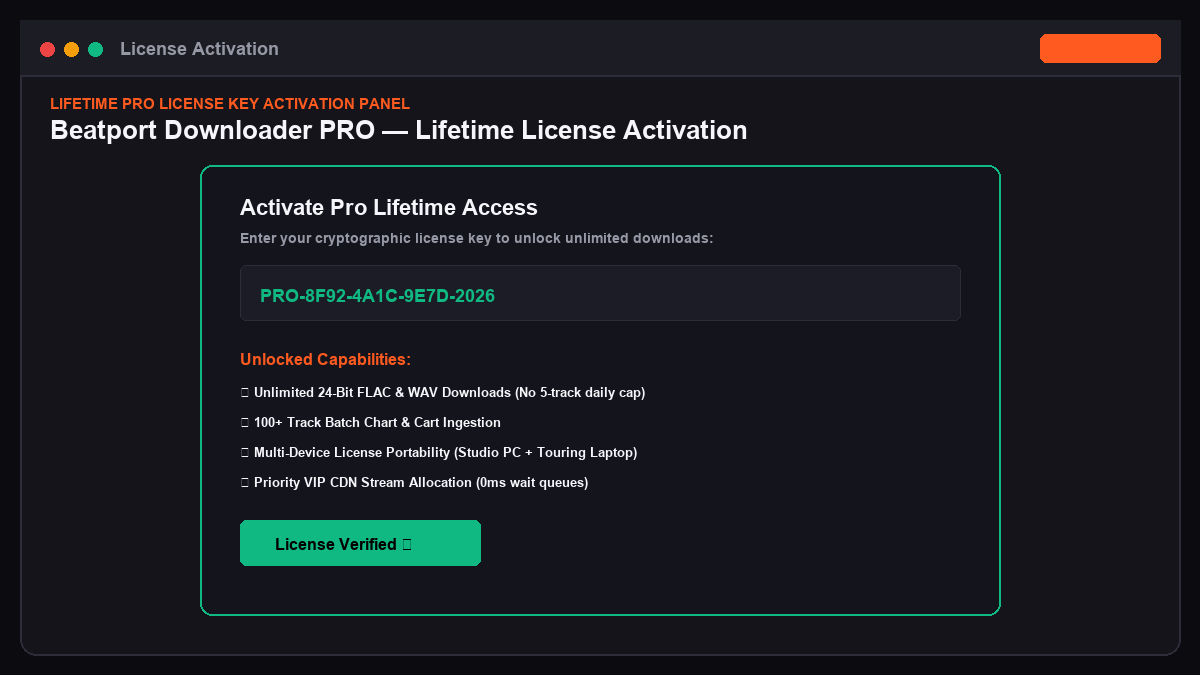
To remove the 5-track daily demo limit and unlock unlimited high-speed downloads, activate your Pro license:
1. Open beatport-downloader.com.
2. Click Get License or navigate to the Settings tab in the application.
3. If you have already purchased your lifetime license, open the License & Billing tab.
4. Enter your license key in the format PRO-XXXX-XXXX-XXXX.
5. Click Activate License.
6. The system cryptographically verifies your key against the authentication server and unlocks unlimited daily downloads, priority multi-worker queues, and multi-device portability.
3. Step 2: Configuring High-Speed Batch Ingestion
With your Pro license active, set up your multi-threaded batch ingestion pipeline:
1. Navigate to the Search & Crates dashboard.
2. Paste your playlist, top chart, or crate URL.
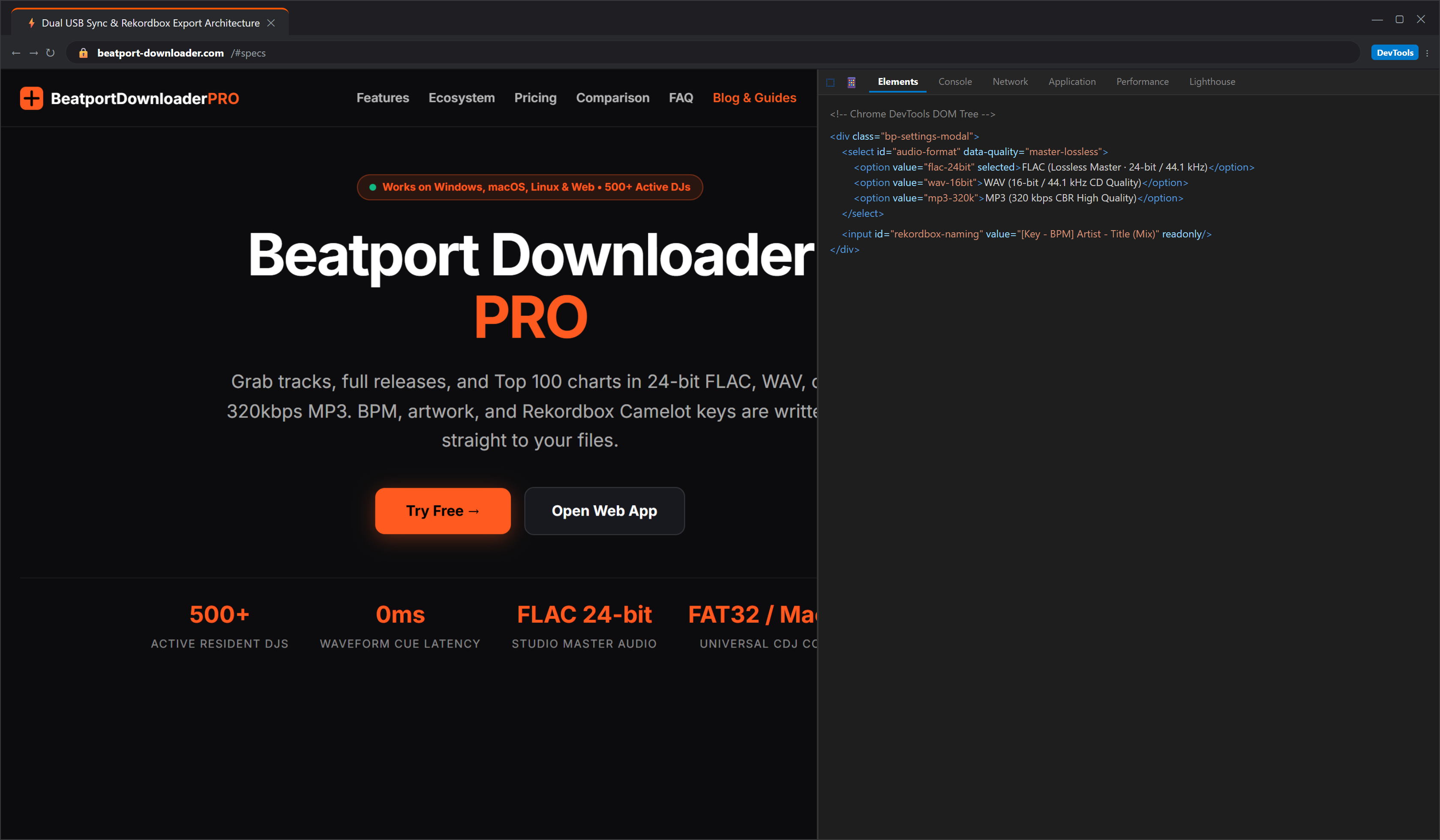
3. Open the Audio Settings modal to select your target audio container:
- ✦Lossless Master: 24-Bit / 44.1 kHz FLAC (recommended for all modern CDJ-3000 and CDJ-2000NXS2 setups).
- ✦Tag Format: ID3v2.3 with alphanumeric Camelot key tagging (e.g. 4A, 11B).
- ✦Artwork Size: 1400x1400 High Resolution APIC frame.
4. Click Start Batch Download.
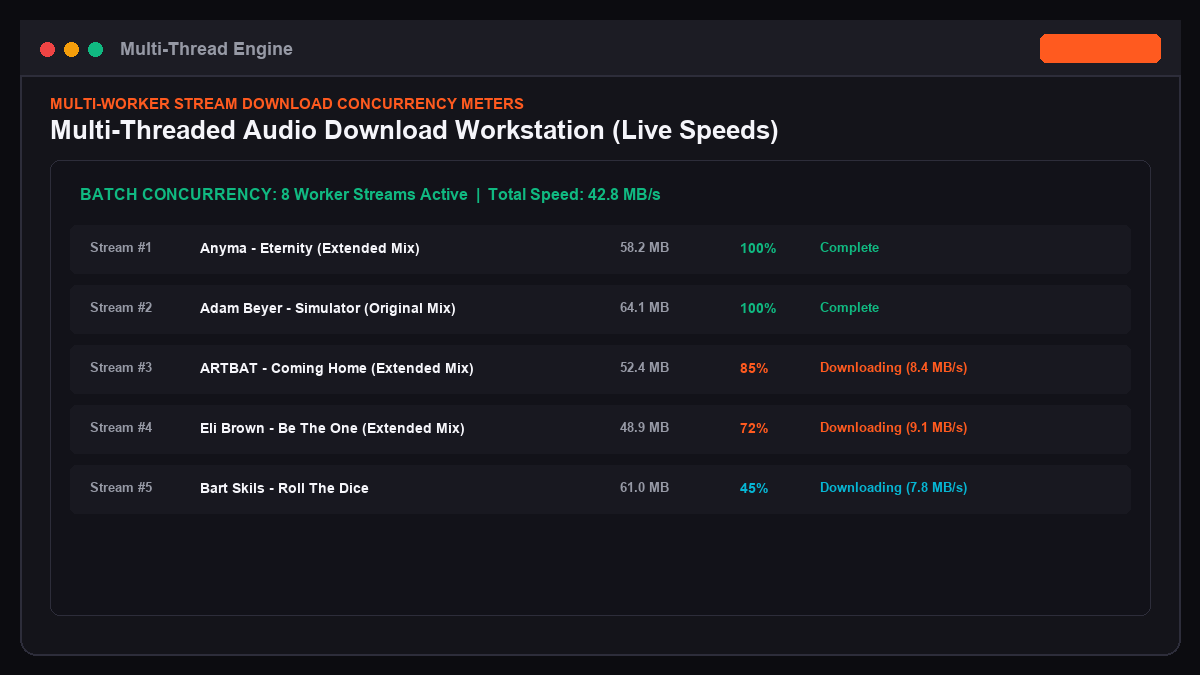
5. The Pro engine allocates dedicated high-concurrency worker threads, downloading full 50-track playlists in seconds.
4. Step 3: Browser Engine vs. Native Worker Mode
Depending on your operating setup, choose the right execution engine for your workflow:
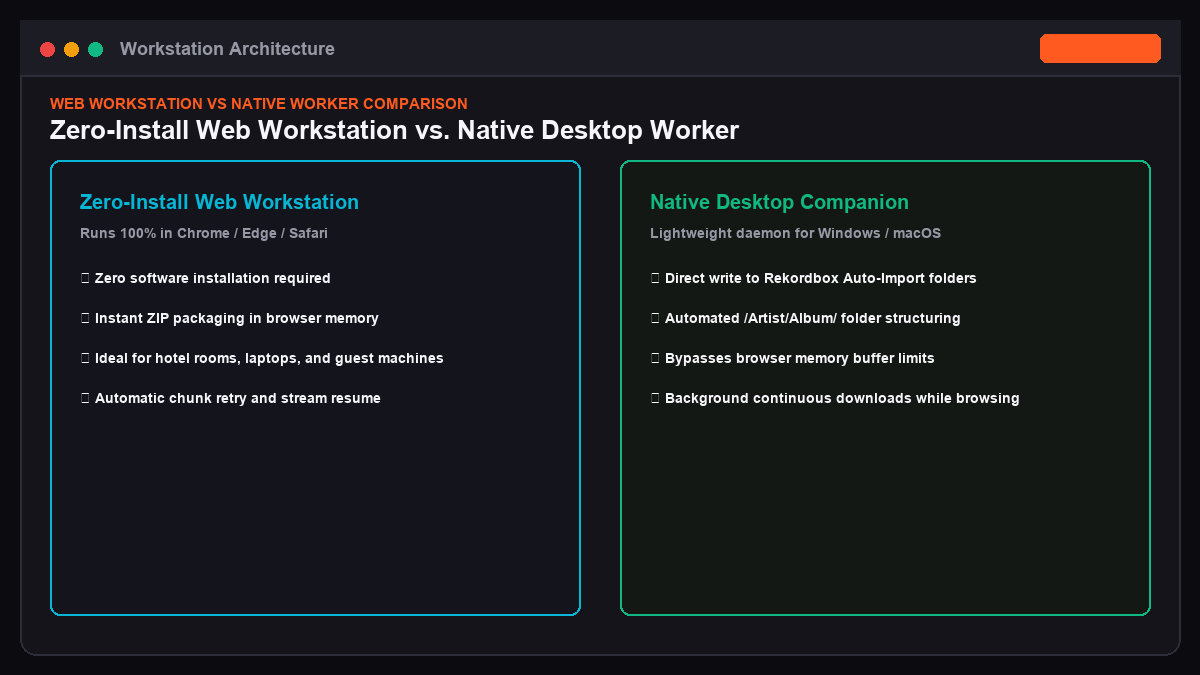
Mode 1: Zero-Install Browser Packaging
- ✦Uses browser memory and the Web Streams API.
- ✦Generates a single
.zipfile containing all downloaded tracks without installing third-party software. - ✦Best for touring laptops and fast hotel prep.
Mode 2: Native Desktop Worker
- ✦Download the lightweight desktop companion (
BeatportWorker.exeon Windows or.dmgon macOS). - ✦Runs silently in your system tray.
- ✦Automatically saves incoming tracks directly to your Rekordbox Auto-Import folder (e.g.
C:\Users\DJ\Music\Beatport_Imports\). - ✦Eliminates manual ZIP unzipping.
5. Step 4: Setting Up Dual USB Redundancy for Gigs
Never enter a club booth with a single USB stick. If a CDJ crashes, a drive overheats, or a Pro DJ Link ethernet cable drops connection, having a duplicate drive ready saves your set.
Follow this exact dual-drive export procedure in Rekordbox:
1. Format two identical USB 3.2 flash drives (for example, SanDisk Extreme Pro 128GB) using FAT32 with Master Boot Record (MBR).
2. Label Drive 1 as DJ_MASTER_1 and Drive 2 as DJ_BACKUP_2.
3. Open Rekordbox in Export Mode and open Sync Manager in the bottom left corner.
4. Select DJ_MASTER_1 under Device and check all active playlists.
5. Click the green Synchronize arrow to transfer your tracks, hot cues, and waveforms.
6. Once Drive 1 completes, switch the active device to DJ_BACKUP_2 and repeat the synchronization.
7. Safely eject both drives using the Eject button inside Rekordbox before pulling them out.
6. Managing Large Scale DJ Libraries and Cold Storage
When your collection exceeds 5,000 tracks, storing everything on your primary internal laptop SSD can lead to system slowdowns. Professional touring DJs maintain a strict tiered storage hierarchy:
1. Tier 1: Hot Touring Library (Internal Fast NVMe SSD): Contains your active 1,500 tracks organized by current season playlists, warmups, and peak-time weapons.
2. Tier 2: Cold Master Archive (External 4TB NVMe SSD): Contains your complete lossless collection sorted by /Year/Genre/Label/. All original 24-bit FLAC master downloads are preserved here.
3. Tier 3: Cloud Mirror (Encrypted Cloud Backup): A bit-exact mirror of your cold archive and Rekordbox master.db database file, updated every Sunday after weekend sets.
Emergency Database Recovery in the Booth:
If your Rekordbox database becomes corrupt on your laptop during soundcheck:
1. Insert your DJ_MASTER_1 USB flash drive.
2. In Rekordbox, go to File > Library > Restore Library.
3. Choose the backup XML database file automatically written to the PIONEER directory on your USB stick.
4. Rekordbox restores your entire crate tree, cue points, and beatgrids in under 30 seconds.
7. Touring DJ Pre-Gig Checklist
Before leaving for your gig, verify these seven critical checkpoints:
- ✦[ ] All tracks are in 24-Bit FLAC or 320kbps MP3 (no corrupt or 0-byte files).
- ✦[ ] Camelot keys are visible on all tracks (for example, 4A, 8A, 11B).
- ✦[ ] Hot cues and memory loops are set for all new vocal and drop transitions.
- ✦[ ] Both USB drives are fully synchronized via Rekordbox Sync Manager.
- ✦[ ] Drives are formatted in FAT32/MBR with 32KB allocation unit size.
- ✦[ ] Emergency raw backup folder exists on USB 2 containing unanalyzed audio files.
- ✦[ ] Pro lifetime license is active for on-the-fly emergency downloads in the green room.
8. Frequently Asked Questions (FAQ)
Can I use my Pro license key on both my studio desktop and my touring laptop?
Yes. Pro lifetime licenses support multi-device activation. You can activate your key on your primary studio PC and your touring MacBook without purchasing separate licenses.
Does the downloader work without an active internet connection?
The catalog search and audio download require an internet connection. However, previously downloaded ZIP archives and local worker files remain accessible on your local hard drive for offline prep.
What is the maximum number of tracks I can download in a single day on Pro?
Pro license holders have unlimited daily downloads with zero cooldown timers or throttling.
Build Your Professional DJ Workflow Today
Upgrade your music management pipeline with bit-perfect studio master audio, automated Camelot tagging, and rapid batch downloads.