
Few situations are more stressful than stepping into a packed club, plugging your USB drive into a Pioneer CDJ-2000NXS2 or CDJ-3000, and seeing an immediate error message: "FORMAT USB", "E-8306: NO FILE", or "E-8302: CANNOT PLAY TRACK".
These errors rarely stem from faulty hardware on the club mixer or CDJ deck. In most cases, they are caused by improper drive formatting, incompatible partition tables, or corrupted database files generated during the Rekordbox export process.
Consumer operating systems like Windows 11 and macOS Sequoia default to modern file systems (exFAT, NTFS, or APFS) and modern partition schemes (GPT). While fine for desktop computing, these standards can cause read failures on embedded media players running older Linux and RTOS operating systems.
This field guide walks you through formatting your flash drives correctly using FAT32 with MBR partition tables, benchmark drive performance, and establish a dependable 3-USB backup system for touring.
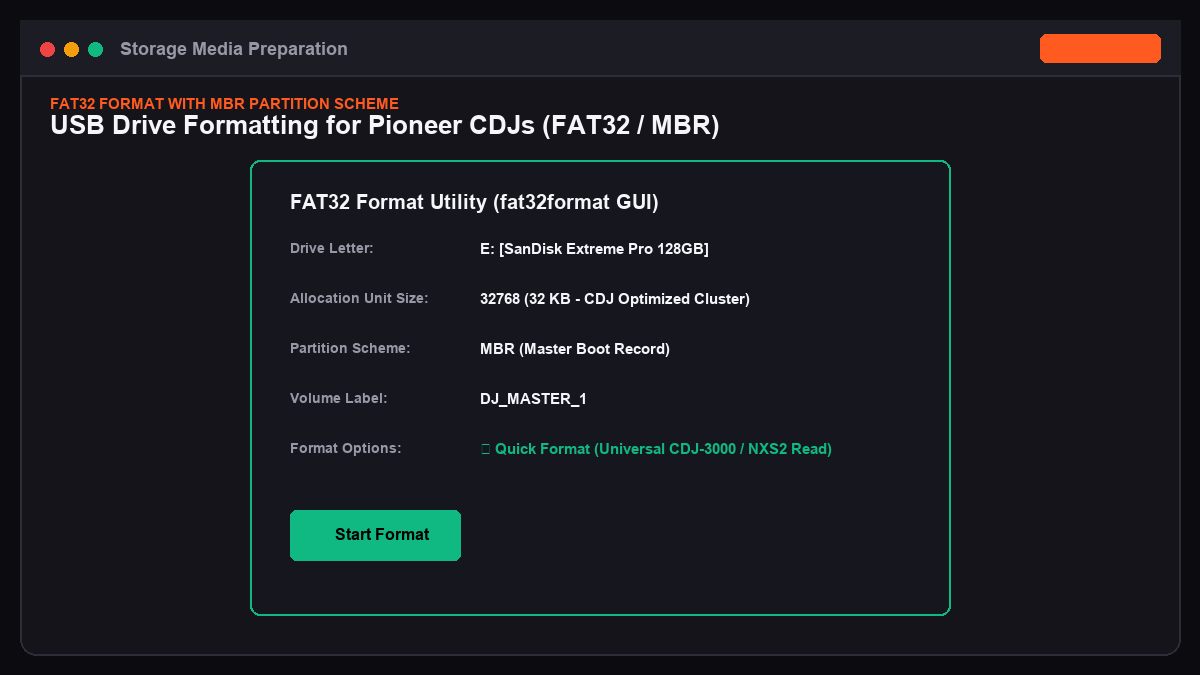
1. Partition Schemes and File Systems: FAT32 vs. exFAT vs. MBR
Standalone DJ hardware uses embedded microprocessors. Understanding which file systems they support is crucial for reliable performance in the booth.
================================================================================
PIONEER CDJ FILE SYSTEM COMPATIBILITY BREAKDOWN
================================================================================
File System | CDJ-3000 | CDJ-2000NXS2 | CDJ-2000NXS | CDJ-900NXS | XDJ-XZ / RX3
--------------------------------------------------------------------------------
FAT32 (MBR) | Native   | Native       | Native      | Native     | Native
exFAT (MBR) | Native   | Unusable     | Unusable    | Unusable   | Unusable
exFAT (GPT) | Native   | Unusable     | Unusable    | Unusable   | Unusable
NTFS        | Unusable | Unusable     | Unusable    | Unusable   | Unusable
HFS+ (Mac)  | Native   | Native       | Native      | Native     | Native
APFS (Mac)  | Unusable | Unusable     | Unusable    | Unusable   | Unusable
================================================================================
The Critical Rule: Always Use FAT32 with MBR
- ✦FAT32 (File Allocation Table 32): The only universally compatible file system supported by every generation of Pioneer CDJ, Denon DJ, and all-in-one controller units.
- ✦MBR (Master Boot Record): The partition scheme required by older CDJ media players. If your drive is partitioned using GPT (GUID Partition Table), older decks like the CDJ-2000NXS will fail to detect the drive entirely, even if formatted in FAT32.
CAUTION REGARDING exFAT:
The Pioneer CDJ-3000 supports exFAT, but older industry-standard players
like the CDJ-2000NXS2 and CDJ-900NXS do not. If you format your USB as exFAT
and arrive at a venue running NXS2 decks, your drive will not load.
Always use FAT32 for universal venue compatibility.
2. Step-by-Step Formatting Instructions
Formatting on Windows (Using Rufus or GUIFormat):
Windows 10 and 11 prevent users from natively formatting drives larger than 32GB as FAT32 through the standard File Explorer menu. You can use FAT32 Format (GUIFormat) or Rufus to bypass this limitation.
# Optional: Clean disk via Windows Diskpart command line
diskpart
list disk
select disk X   # (Replace X with your target flash drive number)
clean
convert mbr
create partition primary
format fs=fat32 quick
assign
exit
1. Download and launch GUIFormat (fat32format).
2. Select your USB drive letter.
3. Set Allocation Unit Size to 32768 (32 KB). This cluster size provides fast random-read access for CDJ database lookups.
4. Check Quick Format and click Start.
Formatting on macOS (Disk Utility):
1. Insert your drive and open Disk Utility (Applications -> Utilities -> Disk Utility).
2. Click the View dropdown in the top-left corner and select Show All Devices.
3. Select the top-level physical drive (not the volume indented below it).
4. Click Erase in the top toolbar.
5. Set the parameters:
- ✦Name:
DJ_MASTER_1(Use uppercase letters, numbers, and underscores only; avoid special characters and spaces). - ✦Format:
MS-DOS (FAT)(This is macOS terminology for FAT32). - ✦Scheme:
Master Boot Record.
6. Click Erase.
3. Hardware Selection: Random Read Speeds and Thermal Stability
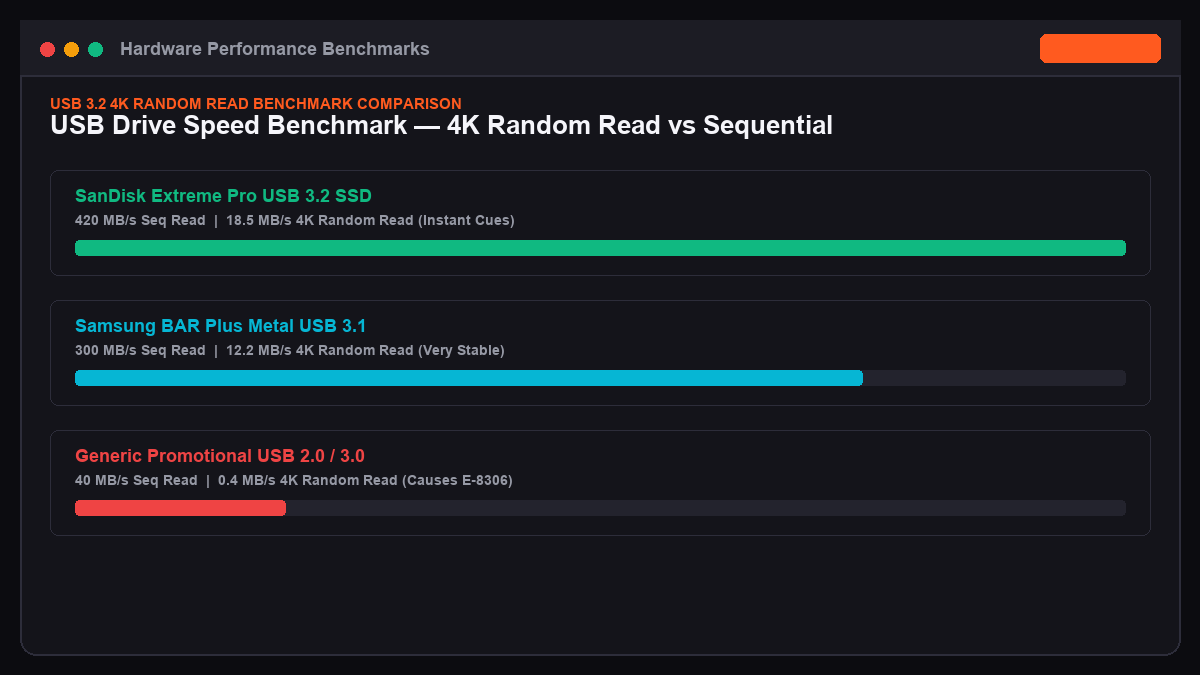
Not all USB flash drives are built to handle the sustained demands of live performance. Cheap promotional drives often use low-grade flash memory that throttles under heat.
================================================================================
RECOMMENDED TOURING FLASH DRIVES (TESTED & FIELD PROVEN)
================================================================================
1. SanDisk Extreme Pro USB 3.2 Solid State Flash Drive (Metal Casing)
   - Read Speed: Up to 420 MB/s | Solid metal housing handles booth heat well

2. Corsair Flash Voyager GTX USB 3.1
   - Internal SSD controller architecture | Fast Rekordbox library syncs

3. Samsung BAR Plus USB 3.1
   - Rugged unibody metal design | Reliable link playback performance
================================================================================
When evaluating a drive for DJ use, look at 4K Random Read Performance rather than sequential write speed. While sequential write speed affects how fast Rekordbox exports playlists, 4K random read speed determines how quickly a CDJ loads track waveforms, cues, and search results when browsing your library during a set.
4. Exporting from Rekordbox Using Sync Manager
Once your tracks are downloaded and tagged via beatport-downloader.com, use the Rekordbox Sync Manager to transfer your playlists onto the formatted USB drive.
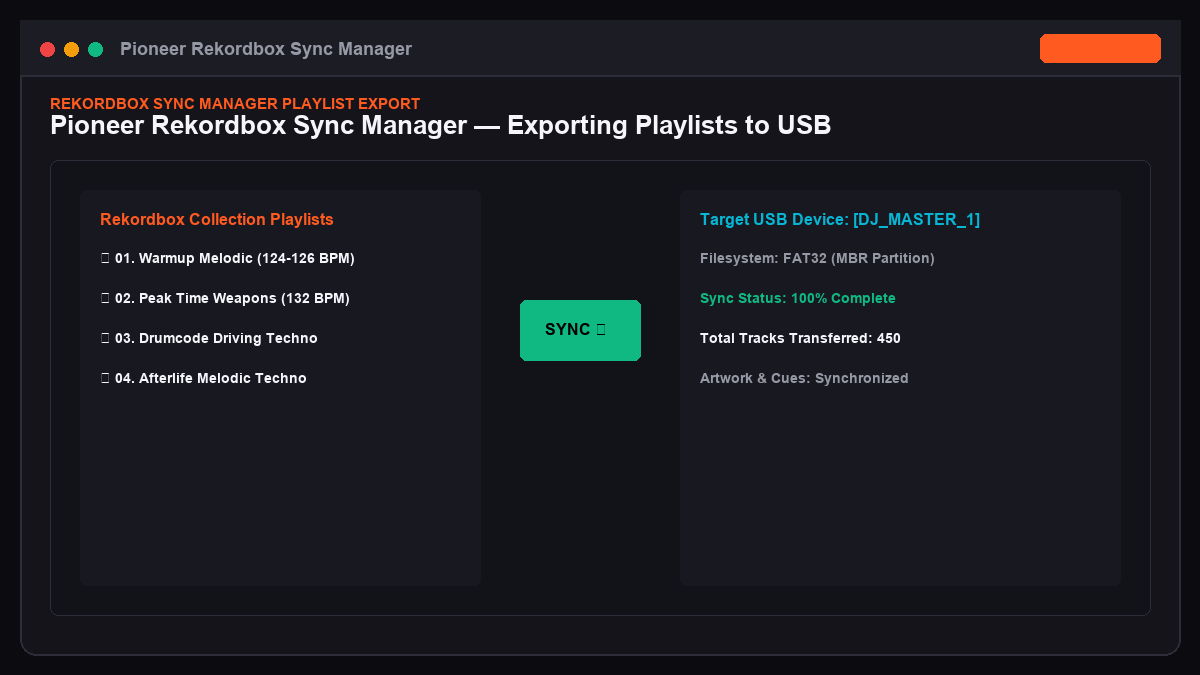
Recommended Export Process:
1. Open Rekordbox in Export Mode.
2. Connect your formatted FAT32/MBR flash drive.
3. Click the Sync Manager button in the lower-left corner of the interface.
4. In the left column (Rekordbox Collection), check the boxes next to the playlists you want to export.
5. In the right column (Device), select your connected USB drive.
6. Click the green arrow pointing right (->) to begin synchronization.
7. Wait until the progress bar reaches 100%. Never unplug the drive while synchronization is running.
8. Click the Eject icon next to the drive in the Rekordbox tree before physically disconnecting it.
5. The 3-USB Rule for Touring DJs
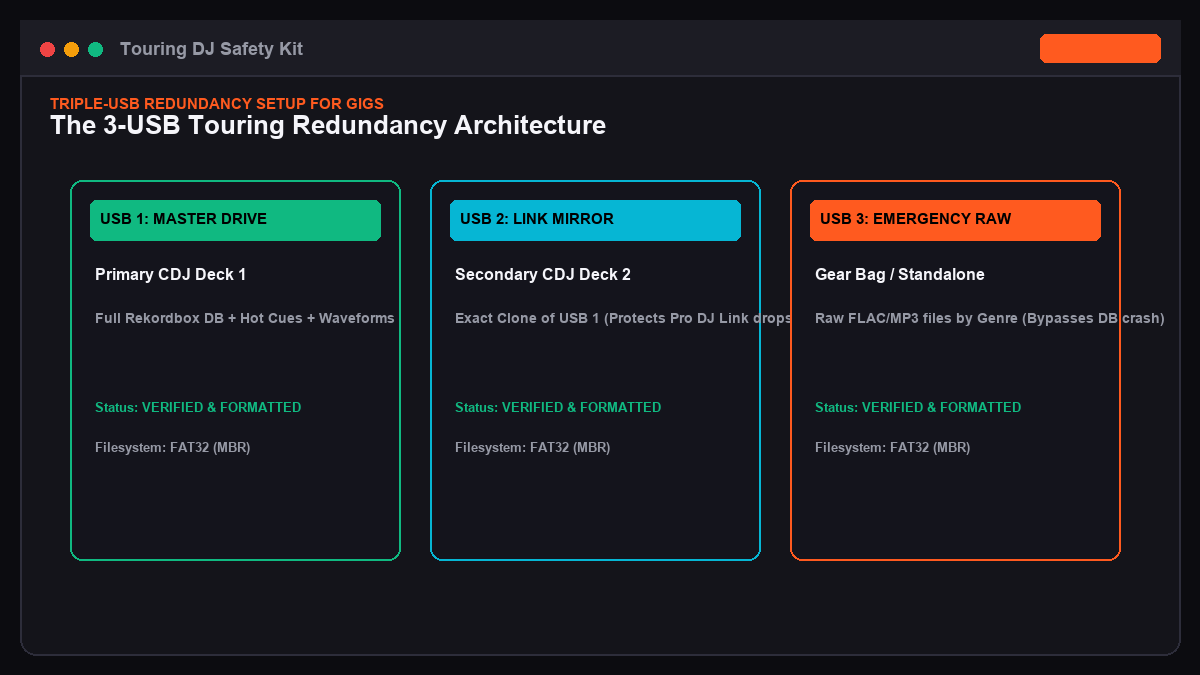
Equipment failures, liquid spills, and lost gear happen in real-world touring environments. Professional touring DJs follow the 3-USB Rule to maintain redundancy at every gig.
+-------------------------------------------------------------------------+
|                       THE 3-USB TOURING SETUP                          |
+-------------------------------------------------------------------------+

[USB 1: MASTER DRIVE]
- Full Rekordbox export with complete playlist structures
- Connected directly to CDJ Deck 1 (Master Player)

[USB 2: LINK MIRROR DRIVE]
- Exact duplicate clone of USB 1 (Exported via Sync Manager)
- Connected to CDJ Deck 2 (Protects against Pro DJ Link network drops)

[USB 3: EMERGENCY STANDALONE DRIVE]
- Formatted as FAT32 (MBR)
- Contains a "RAW_AUDIO" folder with plain files from beatport-downloader.com
- Includes unexported FLAC/MP3 files organized by genre in standard folders
- Allows direct playback from the file browser if Rekordbox database corrupts
+-------------------------------------------------------------------------+
6. Pre-Gig USB Readiness Checklist
Run through this checklist before heading to the venue:
- ✦[ ] Drive is formatted in FAT32 with an MBR partition scheme.
- ✦[ ] Drive name uses only alphanumeric characters and underscores (no spaces or emojis).
- ✦[ ] Export completed cleanly through Rekordbox Sync Manager with no sync warnings.
- ✦[ ] Source tracks downloaded via beatport-downloader.com with embedded Camelot keys and 1400x1400 artwork.
- ✦[ ] Drive was safely unmounted and ejected before removal from your computer.
- ✦[ ] Secondary mirror clone drive prepared and packed in a separate compartment.
- ✦[ ] Emergency raw audio drive packed in your gear bag.
7. Frequently Asked Questions
How do I fix an "E-8306: NO FILE" error during a live set?
This error typically occurs when a track is deleted or moved on the USB drive after Rekordbox generated its database index, or when a Pro DJ Link network cable disconnects mid-track.
To resolve it:
1. Switch to your secondary mirror USB drive.
2. If using a single drive, browse via the Folder menu rather than the Playlist menu to load the audio file directly from disk, bypassing the database index.
What is the maximum USB drive capacity supported by Pioneer CDJs?
Pioneer CDJ hardware supports FAT32 drives up to 2 Terabytes (TB) in size. However, larger drives with thousands of tracks can slow down search indexing. Using high-speed 64GB to 256GB flash drives provides plenty of storage space while keeping browsing snappy.
Why does Rekordbox export take so long on some USB drives?
Export speed depends on your drive's random write speed for small files. Rekordbox writes thousands of tiny analysis files (ANLZ0000.DAT, waveform cache data, cue point markers) alongside the main audio files. Drives with low random write speeds will slow down during export. Using a solid-state USB drive (such as the SanDisk Extreme Pro) significantly reduces export times.
SAFETY DIRECTIVE:
Never perform a firmware update on a CDJ using your primary performance USB.
Keep a separate, dedicated 4GB thumb drive for firmware updates to avoid
leaving update image files in your performance root directory.